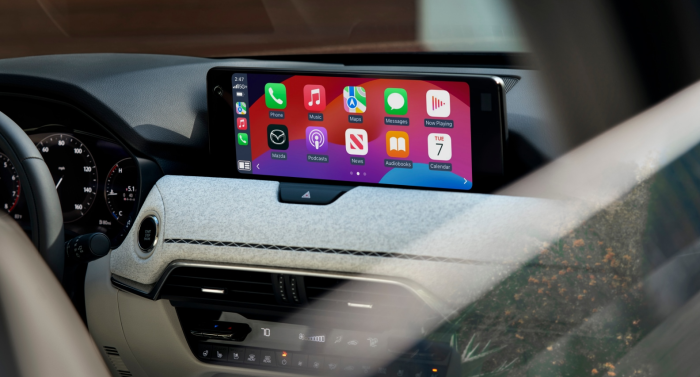
When you get into your Mazda, you expect everything to work. If you've ever encountered a black screen after starting your car, you know how frustrating it can be. These infotainment hiccups couldn't happen at worse times — right when you need to get directions or make a hands-free call. But don't worry; many of these annoying glitches have simple DIY fixes that'll get you back on track. And if all else fails, we're here to help at John Kennedy Mazda Pottstown; we can get your Mazda Connect system running flawlessly. Service Center Schedule a Mazda Service Call Us Today! Understanding Mazda Screen Issues Today's Mazda vehicles rely heavily on their touch screens for practically everything — climate settings, maps, music, and more. When something goes wrong, it's not just a convenience issue; it can affect safety equipment such as your backup camera and interrupt Bluetooth calling. Knowing how to quickly fix minor issues is worth your time. Common Problems These are the most common issues you may run into with Mazda Connect: Black screen Freezing Ghost touches Reboot loops Touch delays These issues often strike without warning, leaving you without access to basic car functions. Even low-mileage models have suffered total blackouts while on the road. Causes of Screen Malfunctions If your Mazda display is not working, it may be due to a hardware problem, such as: Backlight failure Cracked display Faulty wiring Blown fuse Deteriorated RAM Failed chip Weakened solder joint Loose connection Bad ground Moisture damage Physical issues usually develop over time, with extreme temperatures and road vibration accelerating damage. Components tend to wear out after five to seven years. If your Mazda screen is frozen, you might have a software or system issue. These include: Software bugs and glitches Overheated amplifiers Inadequate system cooling Extreme heat or cold Incomplete startups Sensor hiccups or misfires Issues following software updates System overload from multiple connected devices Knowing what's causing the problem helps you decide if you can fix it yourself. Software glitches and connection problems usually respond well to resets, but hardware failures need professional attention to avoid making things worse. Indications That a Reset Is Necessary You'll know it's time for a Mazda infotainment reset when: Your screen takes a long time to respond. Buttons don't work. Apps begin to crash. Features randomly quit. If you tap something on the screen and it takes two or more seconds to respond, your system probably needs reset. Before You Reset: Preliminary Steps Start by turning off your engine and looking for obvious culprits, such as dust or residue on your screen, loose connections, or visible damage. Sometimes surface dirt can affect touch sensitivity. Unplug all your devices and pull out any USB sticks or SD cards. These peripherals can cause conflicts that mimic larger problems. Check for Bluetooth and Connectivity Issues Bluetooth problems often look like system failures. If devices won't pair, calls keep dropping, or music cuts out, try re-pairing, clearing old connections, or restarting Bluetooth on your phone. Check your car's Bluetooth menu and clear out any devices you don't use anymore — they might be causing the problem. Pairing difficulties usually come from incorrect settings, device interference, or outdated software. Quick fixes include toggling Bluetooth off and on or connecting with a cable instead. If your phone's been paired for a long time, try a clean slate — delete the connection from both your car and phone, then pair again. Review System Settings and Preferences Sometimes corrupted settings cause performance headaches that act like hardware problems. Navigate to your infotainment settings menu and check display brightness, sound settings, and connection preferences. Look for anything that seems unusual. Pay close attention to screen timeout settings, auto-connect options, and any custom tweaks you've made. If you recently changed settings, try reverting to default and observe performance. Jot down your important customizations first so you can restore them later if needed. Update Software if Needed Outdated software often triggers touch-screen issues. Look for updates by hitting Settings > Home Screen > Systems, and tap Download if available. You can also find software refreshes through Settings > Systems to fix known bugs. Using Mazda's official process — either over the air via Wi-Fi or manually via USB — is important. For USB updates, use a high-quality drive. Before updating, make sure your battery's fully charged and you've got stable power. Never interrupt an update once it starts; you could “brick” your system, leaving it inoperable. How To Reset Your Mazda Infotainment System Resets come in levels, from simple power cycles to full factory wipes. A soft reset gives your system a quick refresh without erasing your settings or paired devices. A hard reset returns everything back to factory defaults, wiping out all your customizations. Match your reset to the severity of the problem. For a temporary freeze or sluggish performance, a soft reset should be enough. If you're dealing with constant crashes, screen blackouts, or unresponsive menus, you might need to do a hard reset. Always start with the least invasive option. There's no reason to wipe everything if a quick reboot can fix the problem. Instructions for a Soft Reset Soft resets are the quickest fix for minor glitches. Just press the Power/Volume button to restart the Mazda Connect system —this often resolves accidental shutdowns and temporary bugs. If you see only a black screen, press the power button again; it often brings the system back to life. Power cycling means turning your Mazda Connect off and on using the Power/Volume knob. This clears temporary files and refreshes system memory without affecting your saved settings. If the screen remains unresponsive, press and hold the knob for 10-15 seconds to force a restart. Performing a Hard Reset for Persistent Issues When soft resets fail, it's time to try a hard reset. Press and hold the Volume, Back, and Nav buttons together for about 10 seconds. This might erase audio presets and some system settings. Another method is to hold the Mute, Nav, and Back buttons located around the control knob for at least 10 seconds. To perform a full factory reset: Turn on the ignition. Go to Settings. Select System. Choose Restore Factory Settings. Confirm, and wait for the system to reboot. This will wipe all data, including radio presets, paired phones, and navigation favorites. Be sure to write down your important settings before going this route. Use hard resets sparingly, as Mazda limits the number of times it can be performed. And call the pros if multiple attempts don't solve your problem. Get Expert Help at John Kennedy Mazda Pottstown While you can fix many common screen issues yourself, some problems need professional diagnosis and specialized tools only Mazda technicians have. If you still have touch-screen troubles after trying these resets, our team at John Kennedy Mazda Pottstown has your back. Our techs understand what Pennsylvania drivers deal with and provide personalized care to get your system running right again. Book a service appointment today, and say goodbye to those infuriating screen problems for good. Images from mazdausa.com